Showing posts with label iphone. Show all posts

Friday, April 17, 2009

How to Check Your iPhone Bootloader Version (Windows)

These are instructions on how to find your iPhone Bootloader version using BBUpdaterExtreme and Windows. You can use these instructions to determine if an unlock is possible on an accidentally upgraded iPhone 3G. Currently only iPhones with bootloader 5.08 will be able to downgrade their baseband for the unlock.

Before you begin please have MobileTerminal and OpenSSH installed from Cydia. You can find MobileTerminal in the Terminal Support section of Cydia. For instructions on how to install an application from Cydia you can use this tutorial.

You will also need WinSCP installed you can find it here


Step One
Download BBUpdaterExtreme from here and save it to your desktop.

Step Two
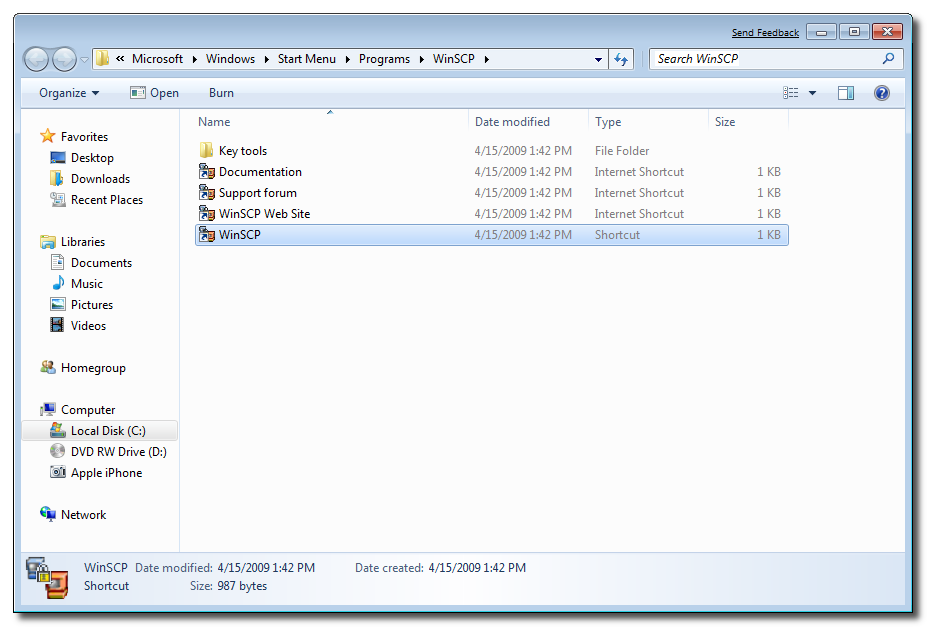
Launch the WinSCP application from your Start Menu programs.
Step Three
Make sure you iPhone is connected to the same wireless network as your computer and determine its IP Address using these instructions.

Step Four
WinSCP will ask you to input your login information. Enter the IP Address you just retrieved in Step Three as the Host Name, root as the username and alpine as the password. Click the Login button to continue.
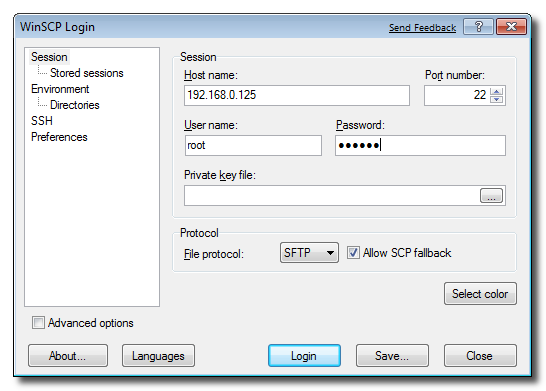

If prompted to add the host key to the cache click the Yes button.


Step Five
WinSCP will now display two file trees. The one on the left is your local computer and the one on the right is your iPhone.
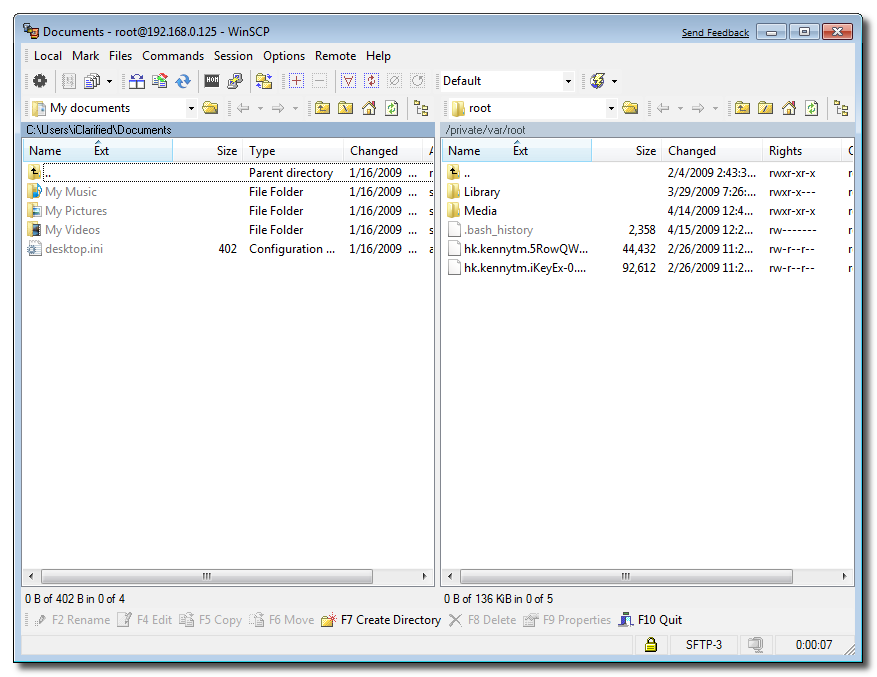

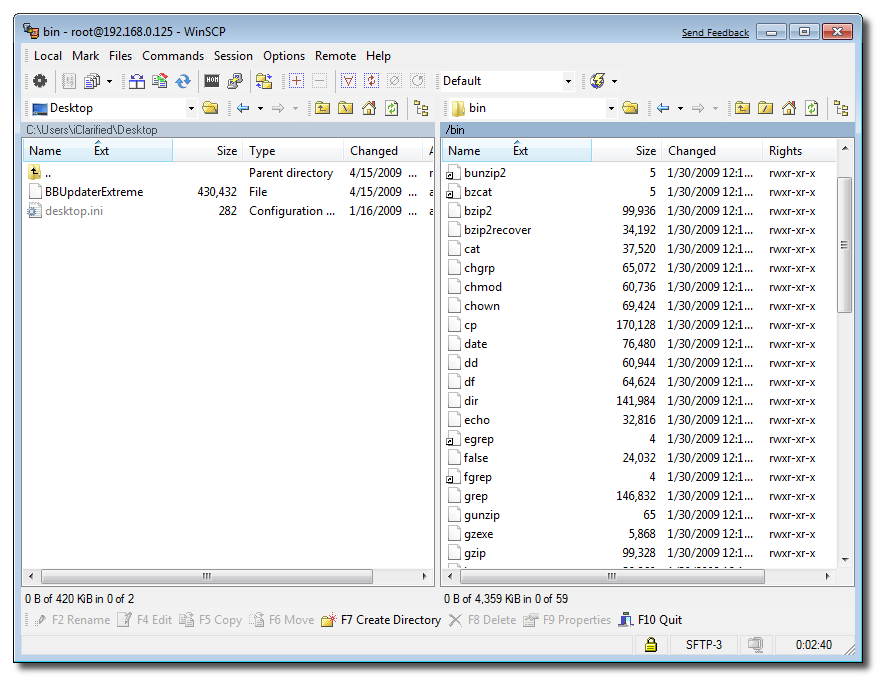
Navigate to your desktop using the left file tree and navigate to the /bin directory using the right file tree.

Step Six
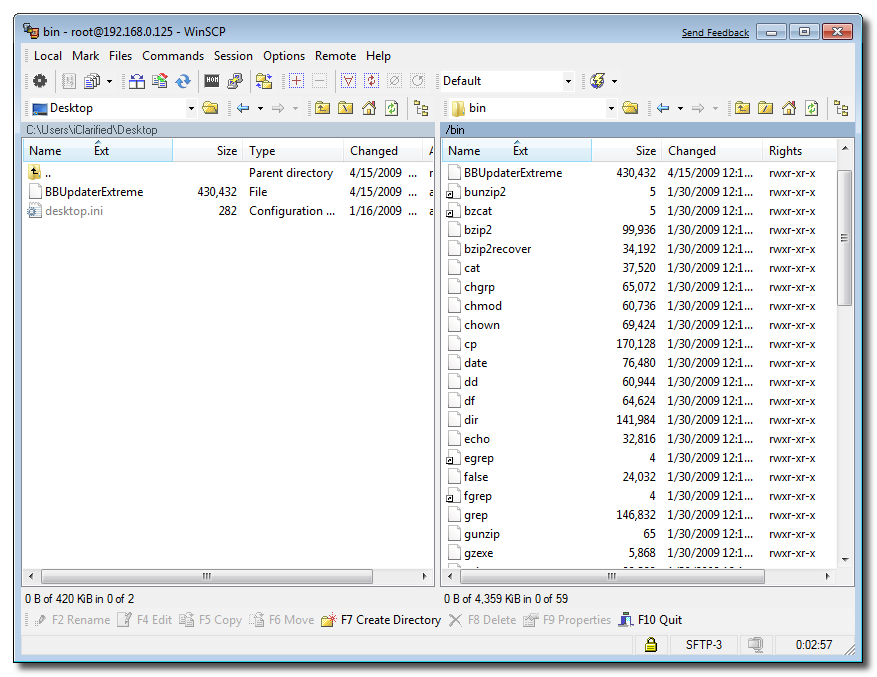
Drag the BBUpdateExtreme file from the left panel to the right panel.

Step Seven
Select Open Terminal from the Commands menu.


Step Eight
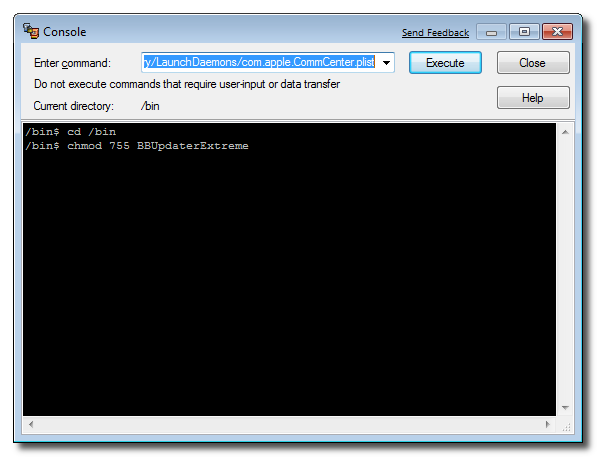
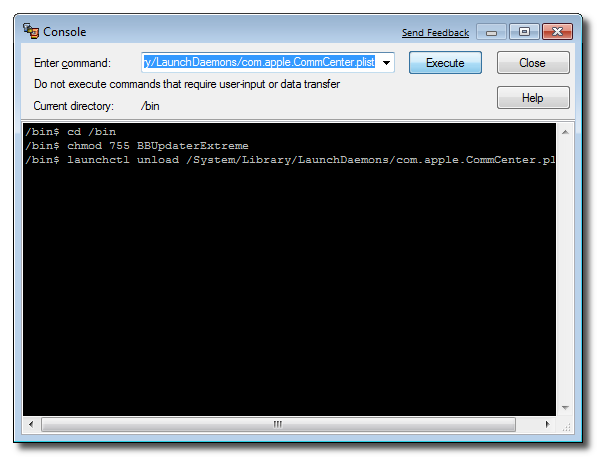
Input the following commands into the Terminal window and click the Execute button after each.

cd /bin
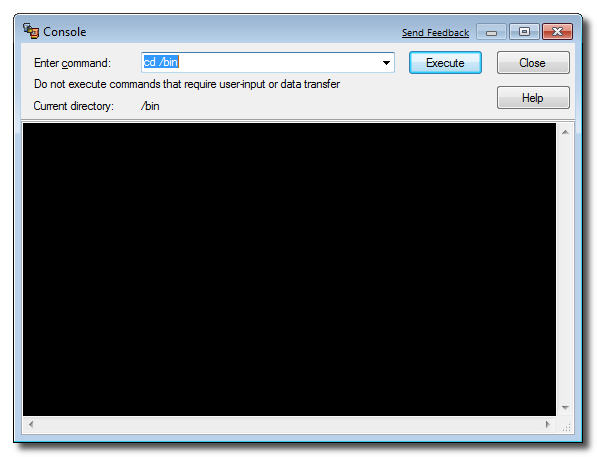

chmod 755 BBUpdaterExtreme
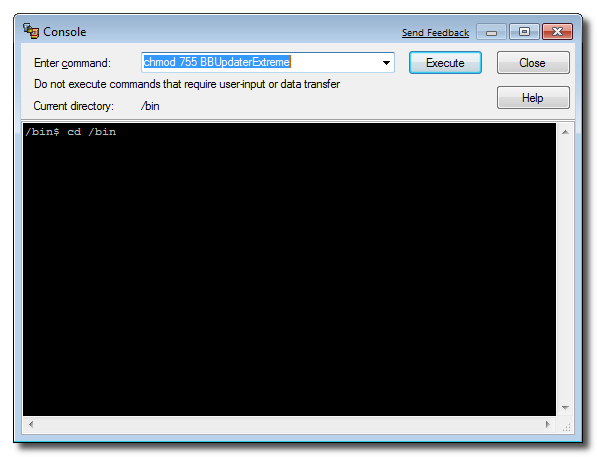

launchctl unload /System/Library/LaunchDaemons/com.apple.CommCenter.plist


Step Nine
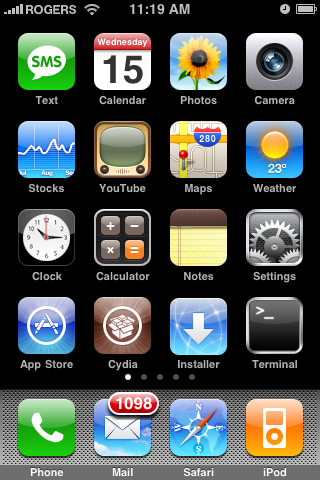
Your iPhone will now loose its network connections. Launch Mobile Terminal from the iPhone SpringBoard.


Step Ten
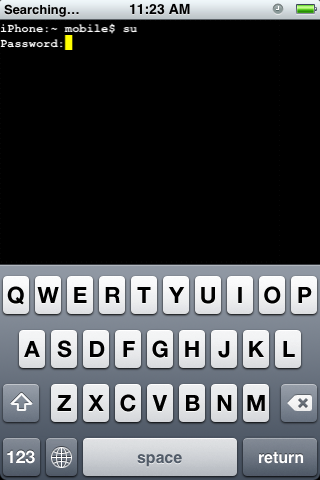
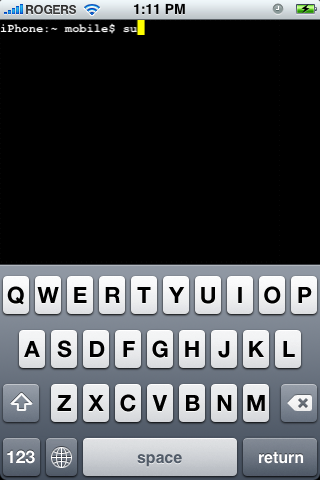
Type su into the terminal window. When asked for a password input alpine as the password.


Step Eleven
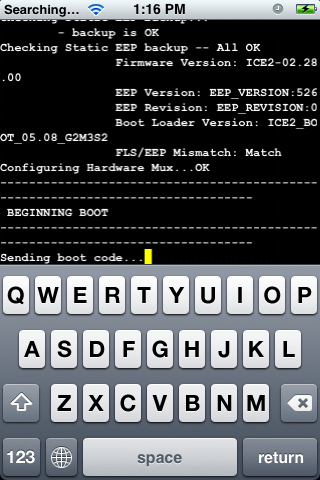
Now input BBUpdaterExtreme queryversion to get the bootloader version of your iPhone. It will look something like Boot Loader Version: ICE2_BOOT_05.08_G2M3S2


NOTES: You will need to restart your iPhone to regain network connectivity. You could also type launchctl load /System/Library/LaunchDaemons/com.apple.CommCenter.plist into the terminal window.
How to Downgrade Your iPhone 3G 2.30 (2.2.1) Baseband for Unlock

These are instructions on how to downgrade your baseband from 2.30 to 2.28 for iPhone 3Gs with the 5.8 bootloader. This will allow you to unlock your iPhone 3G using YellowSn0w. An similar exploit is still be worked on for those with a higher bootloader version...

IMPORTANT: Make sure your iPhone uses the 5.8 bootloader before continuing. You can find instructions on how to check your bootloader version here: Windows, Mac. Ensure you are on the 2.30 baseband by following this tutorial. You will also need MobileTerminal installed to completed this tutorial.


Step One
Launch Cydia by pressings its icon on your SpringBoard.


Step Two
Press to select the Sections tab at the bottom of the screen.


Step Three
Press to select iClarifed from the list of Sections. If you don't see iClarified you will need to add the iClarified source using these instructions.


Step Four
Press to select DownBB from the list of Packages.


Step Five
Press the Install button at the top right of the screen.


Step Six
Press the Confirm button to begin installation.


Step Seven
Once installation has completed successfully press the large Return to Cydia button.


Step Eight
Press the Home button to return to your SpringBoard then press to launch Terminal


Step Nine
Enter su into the terminal window then enter alpine when prompted for a password.


Step Ten
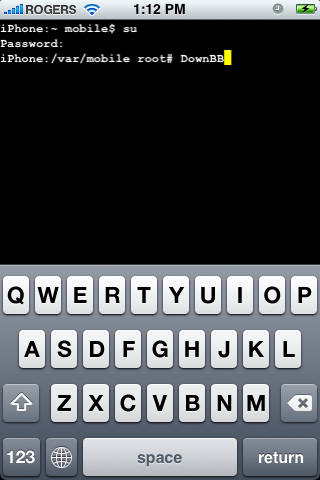
Enter DownBB into the terminal window to launch the baseband downgrade script.


Step Eleven
You will be asked to confirm you would like to continue. Please make sure you are on the 2.30 baseband and have the 5.8 bootloader before entering yes into the window.


Step Twelve
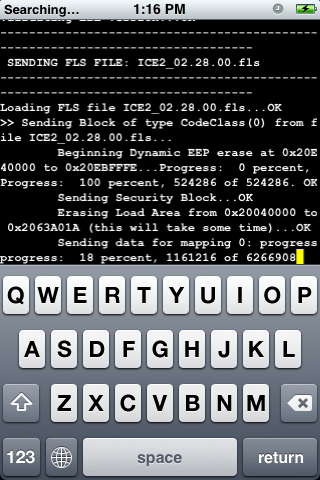
DownBB will now execute the script which downgrades your baseband.


Step Thirteen
Once the script has completed it will automatically reboot your iPhone.


Step Fourteen
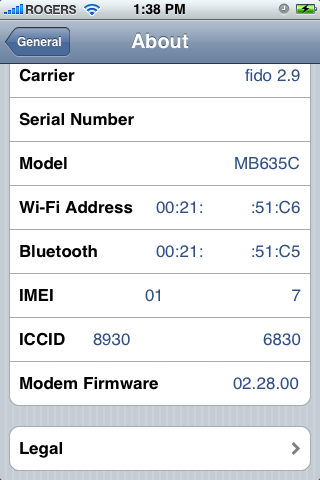
Please note you will now be on the 2.28 baseband.


Step Fifteen
You may now unlock your iPhone using the iPhone 3G unlock tutorial found here!

Monday, December 1, 2008

How to Unlock/Jailbreak Your 2.2.0 2G iPhone Using QuickPwn (Windows)

These are instructions on how to unlock/jailbreak your 2G iPhone to the 2.2 iPhone firmware using QuickPwn for Windows. Before beginning make sure you have updated to iTunes 8.0.2.

Step One
Create a folder called Pwnage on your desktop.

Download the following files and place them in the Pwnage folder you just created:
- QuickPwn 2.2
- BL 3.9
- BL 4.6
- 2.2.0 (2G): iPhone1,1_2.2_5G77_Restore.ipsw

Extract the QuickPwn22.zip file to the Pwnage folder.


Step Two
Connect your iPhone to the computer and launch iTunes.


Select your iPhone from the list of devices on the left. Now hold down shift and click the Restore button. Restore is preferred as it won't create any wasted space on your iPhone.


Navigate to the Pwnage folder on your desktop and select the 2.2 firmware ipsw. Click the Open button to continue.


Step Three
Once iTunes has finished updating your iPhone to the 2.2 firmware you may launch QuickPwn.exe from the Pwnage folder on your desktop.


Step Four
Make sure you iPhone is connected to the computer and click the blue arrow to continue.


Step Five
Click the Browse button to locate your iPhone firmware.


Step Six
Select the 2.2 firmware ipsw from the Pwnage folder on your desktop then click the Open button.


Step Seven
QuickPwn will check to make sure the ipsw is valid. Click the blue arrow button to continue.


Step Eight
You can now select whether to Add Cydia, Add Installer, Replace Boot Logos, and Unlock Phone. Select the ones you would like to perform then click the clue arrow button


Step Nine
You will now be asked to select your bootloader files. Click the Browse button and select the 3.9 bootloader from the Pwnage folder on your desktop. Likewise do the same thing for the 4.6 bootloader file. Then click the blue arrow button to continue.


Step Ten
QuickPwn will now ask you to confirm your iPhone is connected via USB before continuing. Click the blue arrow button to proceed.


Step Eleven
QuickPwn will now automatically put your iPhone into recovery mode. Once its in recovery mode you will be prompted to: Hold the Home button for 5 seconds, Hold the Home and Power buttons for 10 seconds, then release the Power button and continuing holding the Home button until your iPhone is in DFU mode.


Watch the prompts carefully and follow along.

Step Twelve
Once QuickPwn detects your iPhone in DFU mode it will begin the jailbreak process.


Step Thirteen
Once jailbreaking is complete QuickPwn will inform you that it was successfull. Your iPhone will then proceed to run BootNeuter. This process will take about 5 minutes. Please be patient. Your iPhone will reboot when it has completed the process successfully!

Friday, November 21, 2008

18 款免费的导航用 iPhone Apps

十一月 21, 2008

18 款免费的导航用 iPhone Apps

由. Z'HuNG 将文章归档于 MACs

pic

✔ MapQuest
✔ InstaMapper [iTunes]
✔ Trapster [iTunes]
✔ AroundMe [iTunes]
✔ Nearby [iTunes]
✔ Yelp [iTunes]
✔ Goodrec [iTunes]
✔ Target [iTunes]
✔ Coffee Finder [iTunes]
✔ CareerBuilder [iTunes]
✔ iBart [iTunes]
✔ Subway in Korea Lite [iTunes]
✔ Taxi! [iTunes]
✔ Zhiing [iTunes]
✔ Over Here [iTunes]
✔ MapWith.Us [iTunes]
✔ Graffitio [iTunes]
✔ Google Earth [iTunes]